Hello LEAF Community,
In response to industry shifts and to account for changes in Docker Desktop’s licensing model, the LEAF team began supporting Rancher Desktop as an alternative container management tool in November 2022. We determined this was an accessible, no-cost alternative that shipped with all of the core capabilities of Docker Desktop and we still believe this to be true.
However, we have since determined that Rancher Desktop is an incompatible option for a significant portion of the LEAF Community. For those with Leidos managed Windows machines, Rancher Desktop requires the use of Windows Subsystem for Linux 2 (WSL2) and the Virtual Machine Platform be fully enabled. After working through this issue with CIO, it has been determined that due to the high vulnerabilities associated with WSL, it is not a feasible option to expand its access on general LeidosNet at this time.
In light of this new information and to best support our entire community of users, LEAF will deprecate Rancher Desktop support as of June 28, 2023 and return the full focus of our support and documentation to Docker Desktop. To assist you in the transition, please see our Return to Docker Desktop installation guide below. To utilize Docker Desktop, please be advised your team will have to account for the license provisioning process independently through CIO per Docker licensing requirements.
Thank you for your time and patience as we raised this issue through the appropriate channels. We apologize for any inconvenience this may cause your team, but are here to answer any questions you may have.
The LEAF Team
Rancher Desktop to Docker Desktop
Reference: Switch to Rancher Desktop
Uninstall Rancher Desktop from macOS
The LEAF team recently shared the intention to transition back to Docker Desktop support and drop support for Rancher Desktop after June 2023, due to Rancher Desktop’s incompatibility with the Windows users in our community. If you are a Leidos masOS user and anticipate making this switch back from Rancher Desktop to Docker Desktop, below are instructions to help you with the process. If you are on a Windows machine, please see the Docker Desktop Installation guide in the LEAF Knowledge Base for assistance with set up.
Uninstall Rancher Desktop
Below are the steps to uninstall Rancher Desktop:
- Use the following commands to successfully remove all directories from Rancher.
Run each of the following.
rm ~/bin/docker
rm ~/bin/docker-buildx
rm ~/bin/docker-compose
rm ~/bin/docker-credential-ecr-login
rm ~/bin/docker-credential-none
rm ~/bin/docker-credential-osxkeychain
rm ~/bin/kuberlr
rm ~/bin/nerdctl
rm ~/bin/rdctl
rm -rf ~/.rd
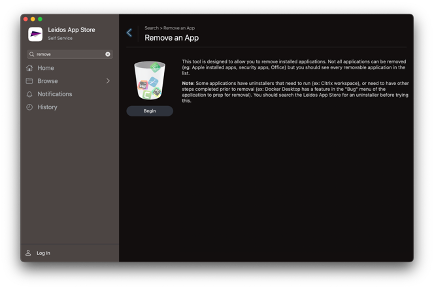
- Navigate to Leidos App Store to uninstall Rancher Desktop. We will be using the Remove an App function since as of right now, CIO does not have a separate app to remove Rancher Desktop compared to the Docker Desktop.
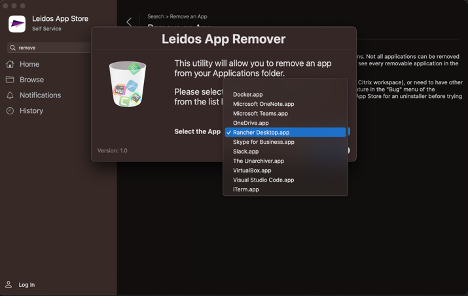
- Please go ahead and select
Rancher Desktop.app as the pop up is displayed.
- Please check if the Rancher Desktop app has been successfully uninstalled under the Applications section in your Finder folder.
Install Docker Desktop
If you are on a MAC, follow the steps below to install Docker Desktop.
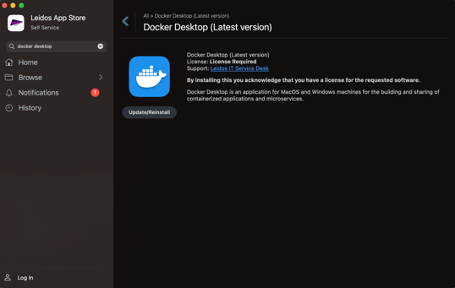
- Install Docker Desktop from the Leidos App Store
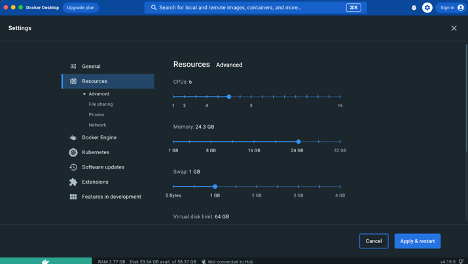
- Change your resources. Apply changes.
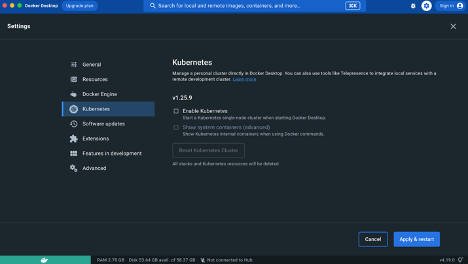
You may want to try Docker Desktop’s built-in Kubernetes, but for the simplest setup, we recommend disabling it for now.
Please check your DOCKER_HOST variable
- Print the value of DOCKER_HOST with echo $DOCKER_HOST

-
If you are setting the DOCKER_HOST variable in your ~/.zschrc or ~/.bashrc, you can remove it unless you have a more advanced use case that requires you to switch docker contexts
-
Run docker context ls, you will still get unix:///var/run/docker.sock
Once you have these settings updated, please go ahead and open a new terminal, then try different Docker commands to ensure your installation works.
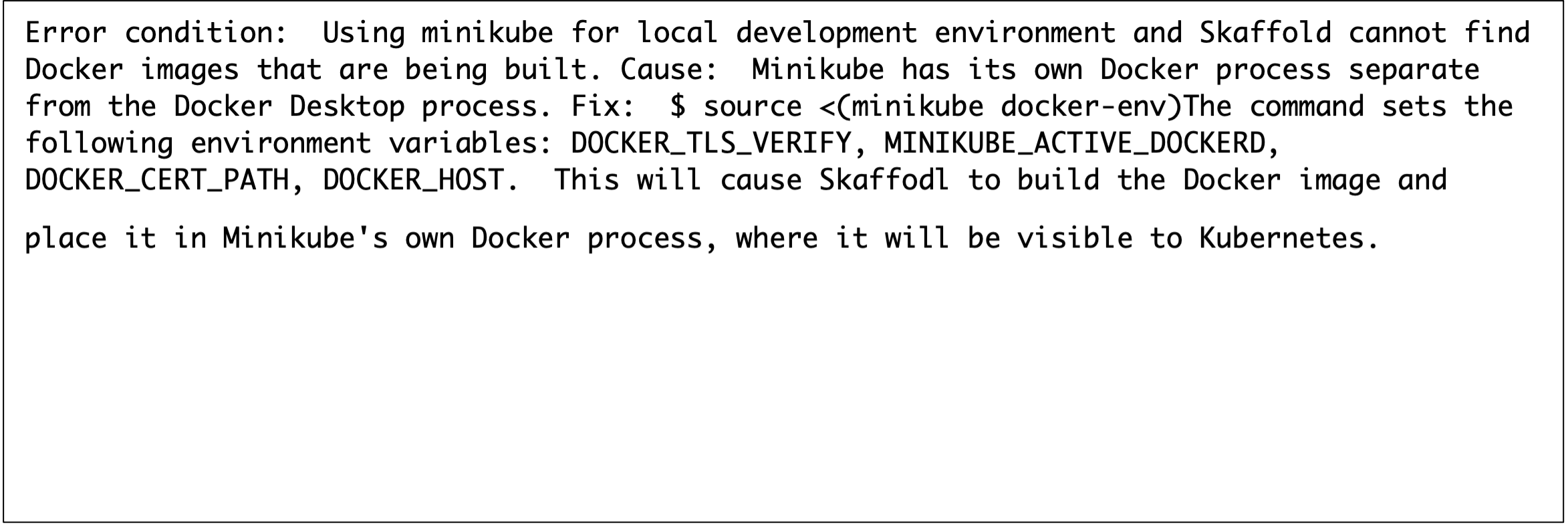
Potential errors